Get Started with PerksPe Mobile
The PerksPe mobile app brings the power of employee benefits and expense management directly to your fingertips. This guide will walk you through the setup process and key features of the mobile experience.
Quick Setup Guide
| Step | Action |
|---|---|
| 1. Install | Download from Google Play Store or Apple App Store. |
| 2. Log In | Use your work email and verify via OTP. |
| 3. Setup | Configure notifications and biometric security. |
| 4. Explore | Start using your Perks, PEP Coins, and managing expenses. |
Step 1: Install the App
Download the official PerksPe mobile app to manage your benefits on the go.
- Android Users: Find us on the Google Play Store.
- iOS Users: Find us on the Apple App Store.
Step 2: Secure Login
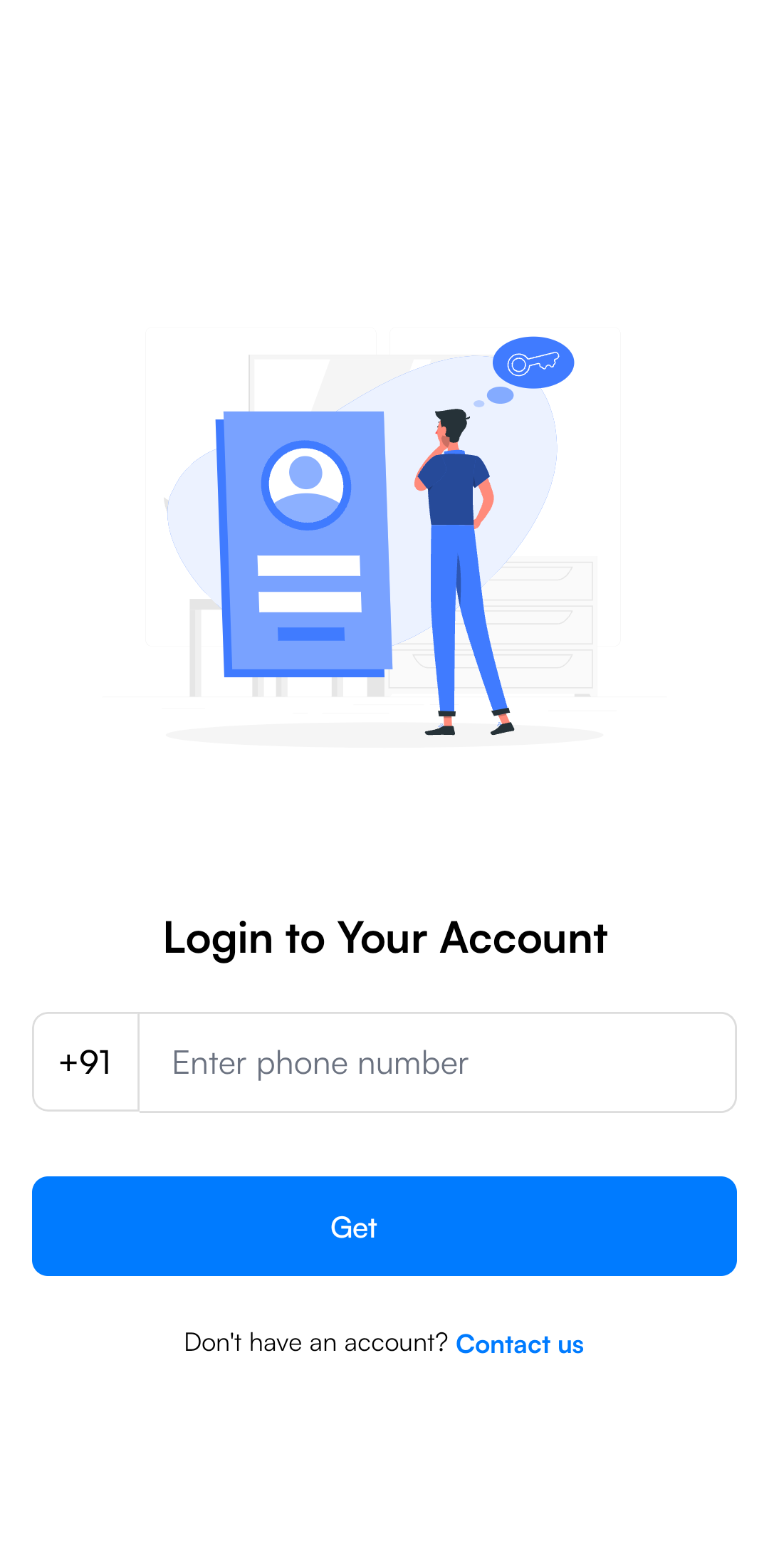
Log in using your registered work email to access your personalized dashboard.
- Open the PerksPe app.
- Enter your work email address.
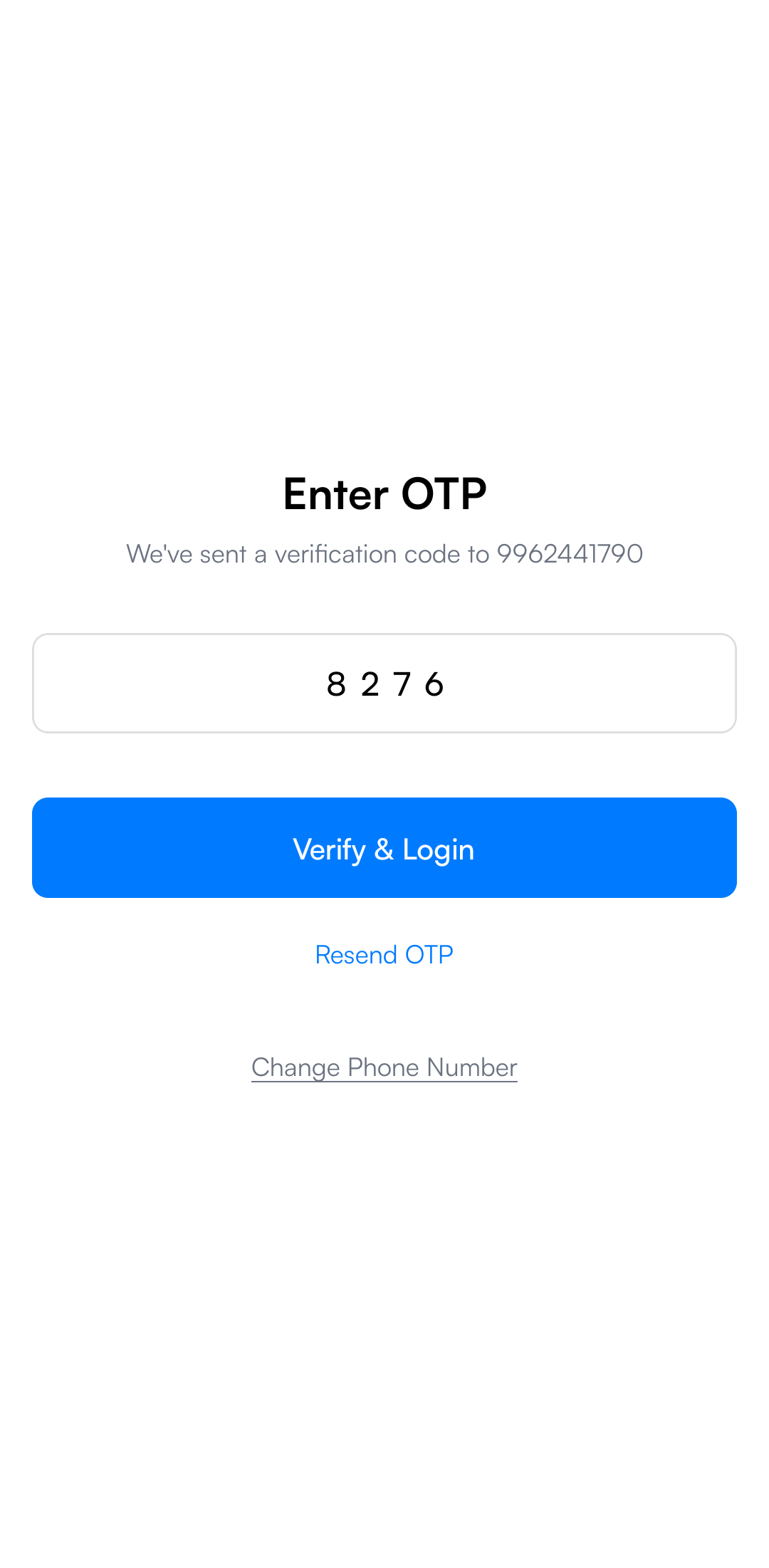
- You will receive a secure OTP (One-Time Password) via email.
- Enter the OTP to verify your identity.
Step 3: Personalized Setup
Upon your first login, we recommend completing these quick setup steps:
- Enable Notifications: Stay updated on perk credits, expense approvals, and important announcements.
- Biometric Security: Set up a PIN, Fingerprint, or Face ID for faster and more secure access in the future.
Step 4: Navigating the Mobile Interface
The home screen is your control center for everything PerksPe.
- Wallet: View your current PEP Coins balance and transaction history.
- Card: Access your virtual/physical RuPay card details and controls.
- Perks: Browse and use benefits like Food, Fuel, and Medical allowances.
- Offers: Discover exclusive deals and discounts available to PerksPe users.
Step 5: Essential Mobile Tasks
Spending PEP Coins
Redeem your PEP Coins instantly at thousands of eligible merchants directly through the app or your linked RuPay card.
Expense Management
Submit business expenses in seconds:
- Tap the Expenses tab.
- Select Add Expense.
- Upload a photo of your receipt and enter the category/amount.
- Tap Submit—your manager will be notified immediately.
Status Tracking
Monitor your submissions in real-time:
- ⏳ Pending: Awaiting manager approval.
- ✅ Approved: Expense verified and ready for reimbursement.
- 🟥 Rejected: View comments to understand why and make necessary updates.
Need help? Contact your organization's HR or visit the Settings section in the app for support.